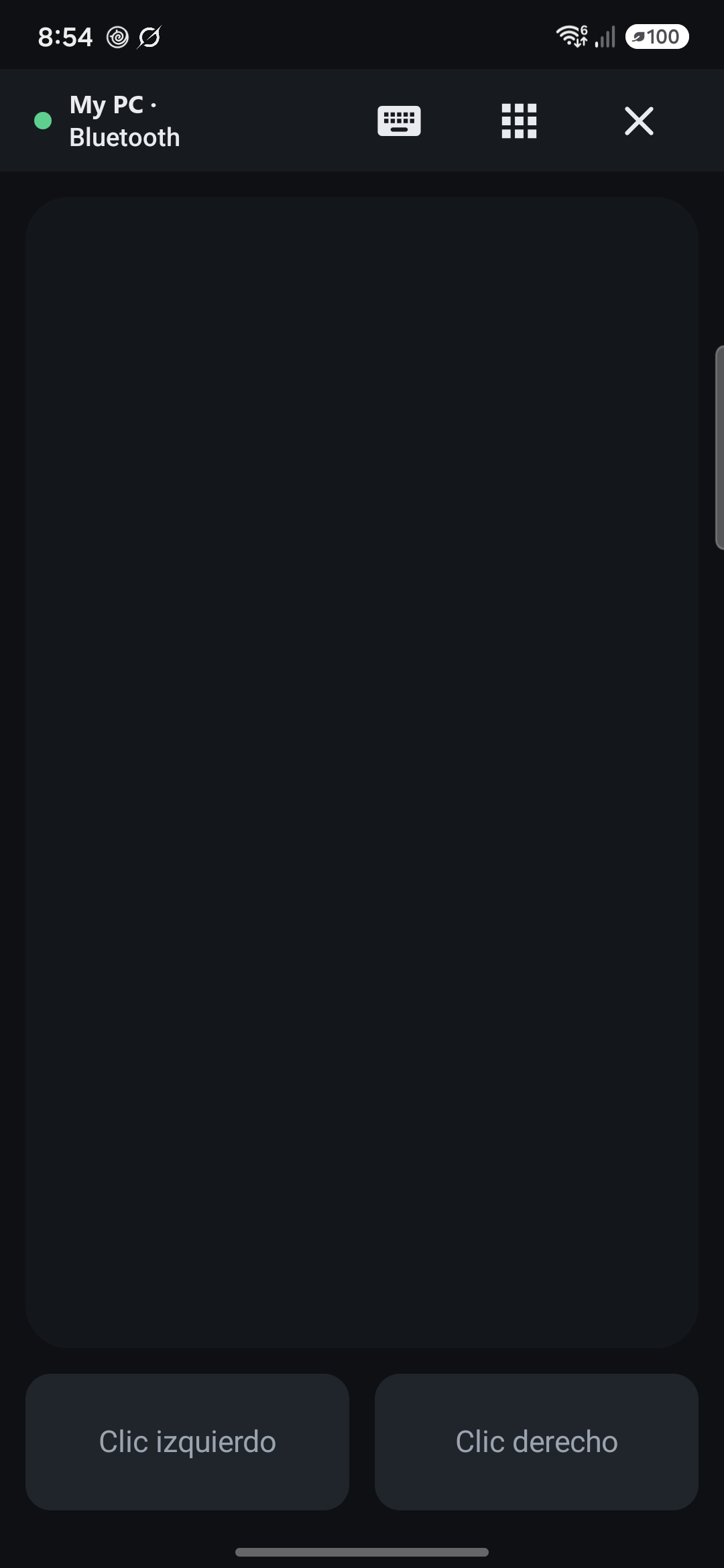
Your phone is your computer's touchpad.
Over Bluetooth with nothing to install on the computer, or over Wi-Fi for the full experience. Free, with no ads.
Coming soon on Google PlayWindows programAndroid 9 or later. Wi-Fi mode: Windows 10 or 11.
Try it before you install anything
Most phone-to-computer remotes ask you to download and run a program on your computer first, before you even know whether you like them. ThumbGlide works over Bluetooth straight away. When you want smooth scrolling and a longer range, add the small Wi-Fi program. One app, both ways.
How it works
Install the app
No account and no sign-up.
Pair once
Pair over Bluetooth like any mouse, or scan the code the Windows program shows.
Glide
Slide to move, tap to click, two fingers to scroll. It reconnects by itself next time.
What you get
Two ways to connect
Bluetooth with nothing on the computer. Wi-Fi with an encrypted connection pinned to your computer.
A real touchpad
One finger to move, tap to click, two fingers to scroll or right-click, hold to drag.
Type like on your phone
Your own keyboard, accents and autocorrect included, plus Esc, Tab, arrows, F1–F12 and shortcuts.
Free and Pro, over Bluetooth and Wi-Fi
Bluetooth works with nothing installed on the computer: your phone shows up as a mouse and keyboard. Wi-Fi needs the small, free ThumbGlide program for Windows and gives you more range, smoother scrolling and a few extra tools.
Free 0 € · no ads, ever
| What you can do | Bluetooth nothing to install | Wi-Fi with the Windows program |
|---|---|---|
| Touchpad: move, tap to click, two-finger scroll, hold to drag Smoother scrolling over Wi-Fi | Yes | Yes |
| Your phone's keyboard, plus Esc, Tab, arrows, F1–F12 and copy/paste shortcuts | Yes | Yes |
| Several computers, it reconnects by itself | Yes | Yes |
| Lock the computer | Yes | Yes |
| Sleep, restart or shut down the computer | No | Yes |
Pro 3,99 € once · no subscription
Everything in Free, plus:
| What you can do | Bluetooth nothing to install | Wi-Fi with the Windows program |
|---|---|---|
| Full PC keyboard in landscape | Yes | Yes |
| Media remote: play, pause, tracks and volume | Yes | Yes |
| Presentation mode, with your phone's volume buttons | Yes | Yes |
| App remotes: YouTube, YouTube Music, Netflix, Spotify, VLC, Zoom, Teams, Meet | Yes | Yes |
| Barcode scanner that types each code into the computer | Yes | Yes |
| Gamepad for PC games, with layouts you can edit (beta) | Yes | Yes |
| Remote for Chromecast with Google TV, no computer needed | Yes | No |
| See and control your computer's screen from the phone | No | Yes |
Questions
Do I need to install anything on my computer?
Not for Bluetooth: your phone shows up as a Bluetooth mouse and keyboard. For Wi-Fi mode, install the free ThumbGlide program for Windows.
Does it work with Mac or Linux?
Bluetooth mode uses the standard Bluetooth mouse and keyboard profile. We've tested it with Windows 11 so far. The Wi-Fi program is Windows-only for now.
Why is scrolling smoother over Wi-Fi?
A Bluetooth mouse can only scroll in whole wheel steps. Over Wi-Fi, the ThumbGlide program scrolls in tiny steps, like a laptop touchpad.
Does anything leave my home?
No. There's no account and no cloud. Your phone talks straight to your computer, and Wi-Fi connections are encrypted.
Is Pro a subscription?
No. You pay once and it's yours, on every phone signed in to the same Google account.
Get the Windows program
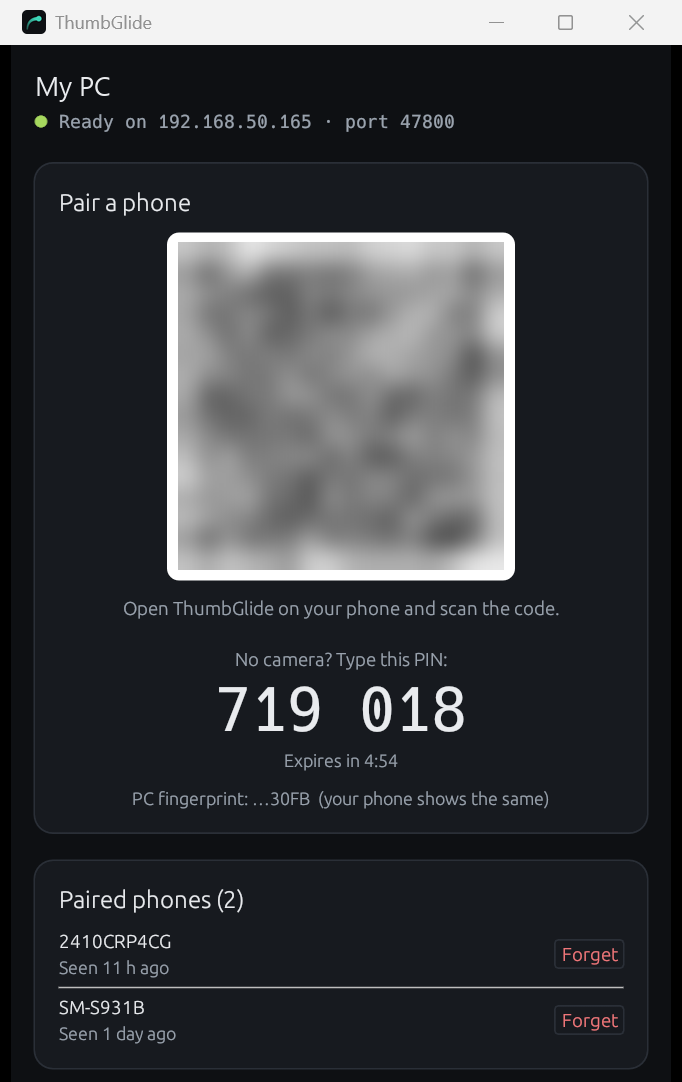
You only need it for Wi-Fi mode. Bluetooth works without it. Install it on the computer, open it, and scan the code it shows with the app.
Installing needs administrator rights. Windows will ask “Do you want to allow this app to make changes to your device?”. Choose Yes, or ask whoever manages the computer. The installer uses those rights only to put the program in Program Files and to let phones on your home or office network reach it through the Windows firewall. The program itself runs as a normal user.
- Run the installer and accept the administrator prompt.
- Pick the options: start with Windows, and let phones connect on private networks.
- Open ThumbGlide. Its window shows a code to scan and a PIN. In the app, choose Wi-Fi and scan it.
- Version
- 0.1.0 · Windows 10 or 11, 64-bit
- SHA-256
fcbb99f44247707d9e25f70503cea67d027121ae76ad0f451ff0738849560fe7- Check it yourself
- In PowerShell:
Get-FileHash .\ThumbGlide-Setup-0.1.0.exeshould print the same value. - Why Windows warns you
- The installer isn't signed yet, so Windows SmartScreen may say it's unrecognised. Check the SHA-256 above, then choose More info and Run anyway.